How to make a QR code for your shop, free: the 5 you need
How to make a QR code for free for your Google reviews, Facebook Page, menu, Wi-Fi and map, plus the free-generator trap and the size rules for print.
Mapkita Team7 min read

Key takeaways
- Chrome makes a QR code for any page you open. On a computer: More, then Cast, save, and share, then Create QR code.
- A shop needs five codes at most: Google reviews, Facebook Page, menu, Wi-Fi and Google Maps directions.
- Print static codes. A free dynamic code depends on the generator's redirect and can stop working if that service lapses or shuts down.
- Keep each code at least 3 cm wide with a white border, print dark on light, and test it on two phones before you print a stack.
How to make a QR code for free, in one minute
Here is how to make a QR code for free: open the link in Google Chrome and use its built-in Create QR code option, then download the image and put it on your sign. No extra app, no account, no generator website. These are the steps on Chrome's help page as of October 2026:
- On a computer: open the page, select More (the three dots), then Cast, save, and share, then Create QR code. Select Download.
- On Android: open the page in Chrome, tap More, then Share, then QR Code, and download it.
- On iPhone or iPad: open the page in Chrome, tap Share, then Create a QR Code, then Share below the code to save it.
- In Canva: in the editor, search "QR code" under Apps or Elements and choose the static option, then paste your link (Canva Help Center). Use this when the QR goes on a design you are already making, like a menu or a flyer.
- For your Google reviews: paste your review link into the free review QR code generator and download a print-ready PNG in one step.
The five QR codes a shop actually needs
A QR code is just a link your customer doesn't have to type. Five links are worth printing for most carinderias, cafés, salons and sari-sari stores. More than that and the codes start competing with each other.
- Google review: opens your review box with the stars ready. Put it at the counter, on the receipt, on the table tent.
- Facebook Page: for your menu updates, promos and Messenger orders. Put it on the door, the bag sticker, the flyer.
- Menu: for tables, the waiting bench and the delivery bag. A printed menu still matters; the QR is the copy people keep.
- Wi-Fi: on the table or the wall in a café or a resort, so staff stop spelling out the password.
- Google Maps directions: on flyers, Facebook posts and your booking replies, for the homestay off the highway or the shop behind the market.
How to make a QR code for a link, an FB Page or a menu
Every one of these starts with a link. Open the link in Chrome on your phone or computer, check it lands where you want, then make the code with the steps above.
- Google review link: Google's help page says to open your Business Profile, select Read reviews, then Get more reviews, where you can copy the link or save the QR. Google notes the review QR can only be made from a computer browser, not a phone. From a phone, use the review link generator, then the review QR code generator.
- Facebook Page: open your Page in Chrome, check the address shows your Page, and create the QR from there. If the link you copied from the Facebook app is very long, open it once in Chrome to make sure it still lands on your Page.
- Menu: the menu has to live somewhere online first, such as your website, a shared PDF or a pinned post. Pick a home you can update without changing the link, so the printed code keeps working when prices change. For the menu itself, see menu design.
- Label every code with what it opens: "Scan for our menu", "Rate us on Google", "Like our Page". A code without a label is easy to ignore.
How to make a QR code for Wi-Fi
You don't need a generator for this. Your phone already makes a Wi-Fi QR code for the network it is connected to.
- Android: open Settings, tap Network and internet, then Internet, tap your Wi-Fi network, then Share. The phone shows a QR code (Android Help).
- iPhone: open the Passwords app, tap Wi-Fi, tap the network, then Show Network QR Code (Apple's iPhone guide).
- Take a screenshot, crop it to the code, and print it. Customers scan it with the camera and join without typing.
- The code contains your password. If your router has a guest network, share that one, and reprint the code every time you change the password.
How to make a QR code for Google Maps
For a location, open Google Maps, search your business, tap its name, then tap Share and copy the link (Google Maps Help). Open that link in Chrome and make the code.
For a link that opens straight into turn-by-turn directions, Google's Maps URLs work without an API key or any setup. Type this in Chrome, with your shop's name and town after the equals sign and plus signs for spaces: https://www.google.com/maps/dir/?api=1&destination=YOUR+SHOP+NAME+TOWN. If it opens directions to the right pin, make the QR. This one helps a resort or a homestay most, where guests arrive by car, van or habal-habal and the last turn is the hard part.
Static vs dynamic QR codes: the free generator trap
A static QR code has your link written into the pattern itself. It works for as long as the link works, needs no service, and never expires. You can't change where it points, so you reprint if the link changes.
A dynamic QR code holds a short link that belongs to the generator company, which then forwards the customer to your real link. That lets you change the destination later and count scans. Canva offers both kinds, for example. The catch is that the printed code now depends on that company. If a free trial ends, an account lapses, the plan changes or the service shuts down, the forward can stop, or land on a page asking you to pay to switch it back on. By then the code is printed on every table tent you own.
For anything printed, use a static code pointing to a link you control. Before you trust any free QR code generator, check which kind it made: scan it with your phone camera and read the preview. If it shows your own link, such as facebook.com or google.com, it's static. If it shows the generator's short domain, it's dynamic.
Size and print rules: test before you print 100
Before you blame the customer's phone, check the print. These rules cost nothing:
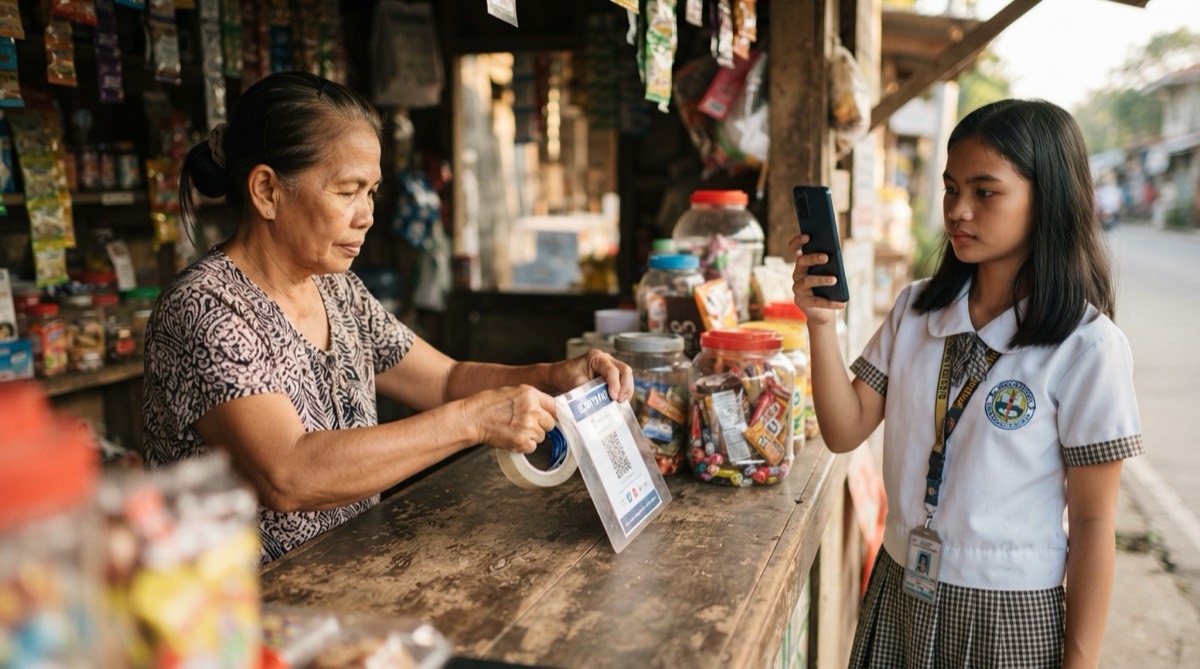
- At least 3 cm wide for a counter, a table or a receipt, so older phones read it from arm's length. Bigger for a door or a wall; test from where people actually stand.
- Leave a white border. The QR standard needs a clear margin four modules wide on every side, a module being one of the small squares (DENSO WAVE, the inventor of the QR code). Don't let a design or a frame touch the code.
- Dark on light. Black on white is safest. Pale colours, a photo behind the code or a light code on a dark background can fail on some phones.
- Never stretch it. Resize from the corner so it stays square.
- Matte paper or matte lamination, so the light from the window doesn't wash out the code.
- Test one before printing a stack: scan it with an Android phone and an iPhone, in the light where it will hang, and check that it opens the right page.
Why a payment QR is different
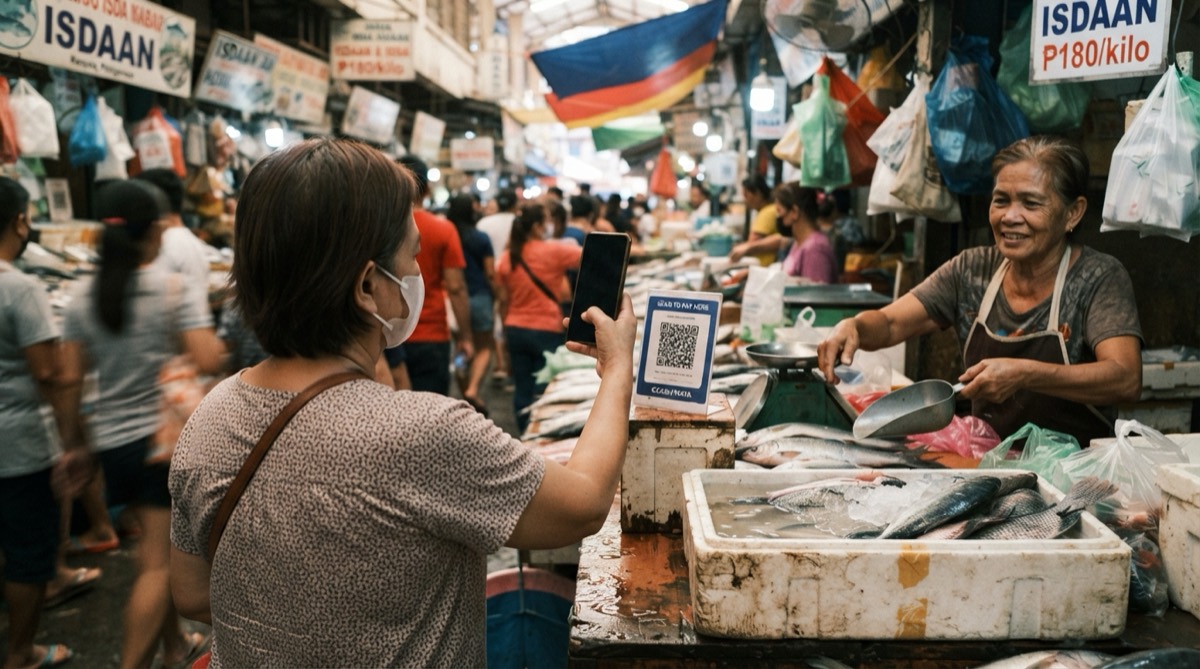
Everything above you can make yourself. A payment code you can't. The QR that sends money to your GCash, Maya or bank account has to be generated by that provider, because it carries your account details in the national QR Ph format. A QR code maker can copy the picture, but it cannot create an account, so a code you build yourself will never pay you. What QR Ph is explains the standard, and GCash QR codes for a small business covers getting yours. Once you have it, the GCash QR sign maker prints it next to a Google review QR on one counter sign.
Frequently asked
- How do I make a QR code for free?
- Open the page you want in Google Chrome. On a computer, select More, then Cast, save, and share, then Create QR code, and download it. On a phone, use Chrome's Share menu, which has a QR code option.
- Do QR codes expire?
- Static QR codes don't expire; they work as long as the link inside them works. Dynamic codes depend on the company that runs the redirect, so they can stop working if the plan ends or the service closes.
- How do I make a QR code for my Facebook page?
- Open your Facebook Page in Chrome, check the address shows your Page, and use Chrome's Create QR code option. Label the printed code "Like our Page" so people know what it opens.
- How do I make a QR code for Wi-Fi?
- On Android, go to Settings, Network and internet, Internet, tap your network, then Share. On iPhone, open the Passwords app, tap Wi-Fi, choose the network and tap Show Network QR Code. Screenshot it and print it.
- How do I make a QR code in Canva?
- In the Canva editor, search "QR code" under Apps or Elements, choose the static option, paste your link and add the code to your design. Keep it at least 3 cm wide with a white border.
Let Mapkita do this for you
Mapkita keeps your Google page right, drafts every review reply and asks you before anything goes public. Start with a free check.