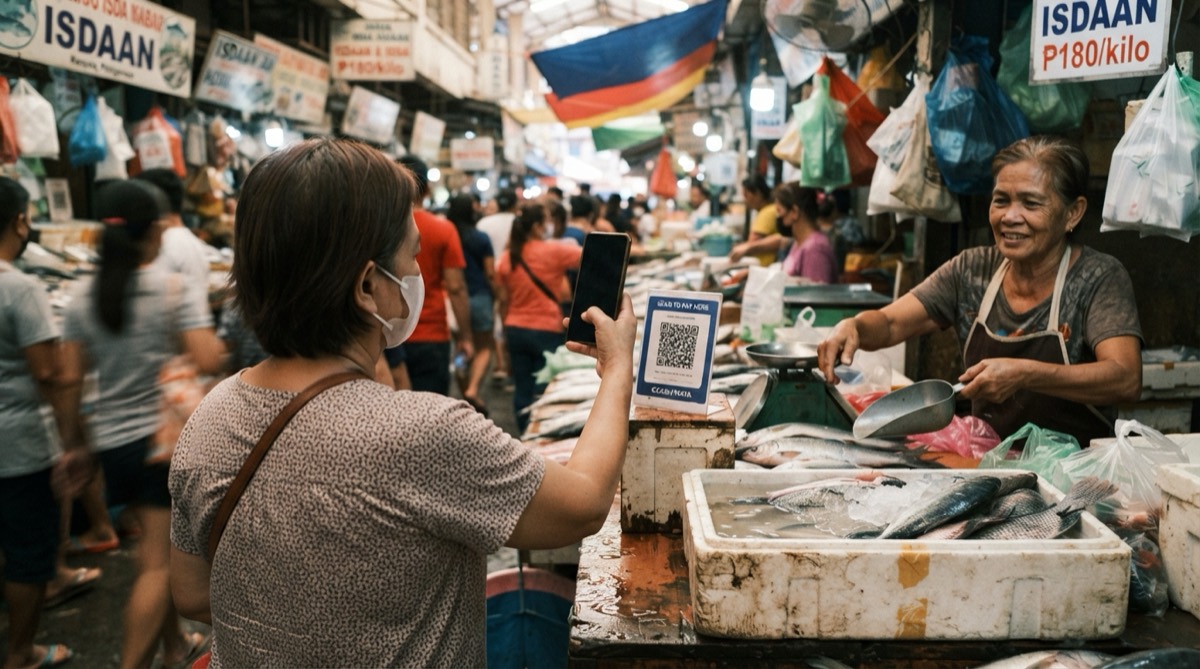
GCash QR code for business: get it, print it, keep it safe
Personal or merchant GCash QR code? How a small shop gets one, prints it so it scans first time, checks it daily, and adds a Google review QR beside it.
Mapkita Team8 min read
Key takeaways
- The personal GCash QR takes four taps in the app: QR, Generate QR, Receive Money via QR Code, then save it.
- A GCash for Business merchant QR shows your merchant name, pays into a separate business wallet and comes with downloadable reports.
- Print the code with dark ink on matte paper, keep it at least 3 cm wide, and scan it every morning to check the name and catch a sticker pasted over it.
- In 2025, 64.69% of retail payments in the Philippines by number were digital, says the BSP, so the payment QR is the best spot for your Google review QR.
Which GCash QR code should your shop use?
A GCash QR code is the square your customers scan to pay you, and a small shop can use one of two kinds. The personal QR comes from the GCash app and takes a minute to make. The merchant QR comes from GCash for Business and is set up for a store, with its own business wallet.
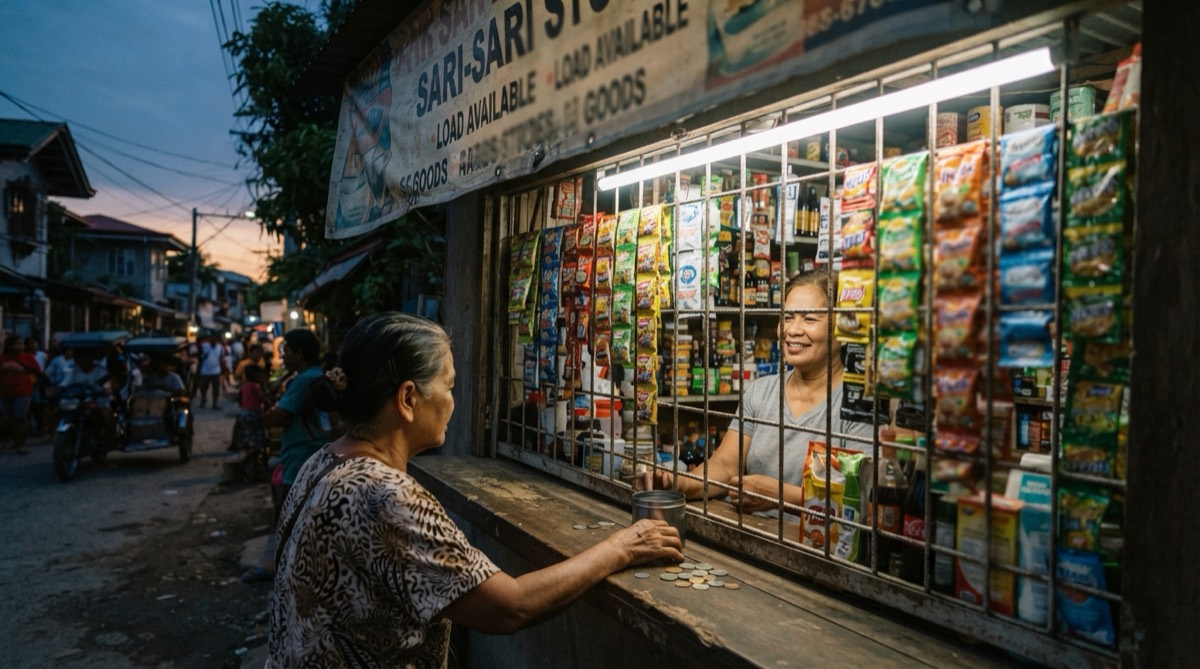
For a sari-sari store, a carinderia or a home business, the personal QR does the job of receiving payments. Move to a merchant QR when you want your store's name on the code, your sales kept apart from your personal money, or reports you can hand to whoever keeps your books.
- Personal QR: made in the GCash app in a minute. Money lands in your personal wallet, and the payer checks the details, including the name, before sending.
- Merchant QR: made in the GCash for Business Portal. It shows the merchant name from your profile, and payments land in a business wallet with a transaction history you can download.
- Both: GCash's scanner reads GCash personal QR, GCash merchant QR and bank QR codes, according to GCash's guide to paying by QR.
- Fees and limits: they differ by account type and they change, so check the current ones in the app or on GCash's pages for wallet limits and merchant rates.
How to get a GCash QR code to receive money
The personal code takes four taps. These are the steps on GCash's help page as of October 2026:
- Open GCash and tap QR.
- Tap Generate QR.
- Tap Receive Money via QR Code.
- Save the code to your phone. You can also reach the same screen from Send, then Generate QR.
Save the plain code, then check the name
For the counter, save the code without an amount in it. The BSP's QR Ph guide says a code can be reused as long as your app did not ask for extra details, such as an amount, when you made it. A code made for one exact sale is not the one to print.
Before you print, scan the saved code with someone else's phone and read the name that comes up. That is the name every customer will see. Make sure it is the right account, not your old number or your kapatid's.
GCash for Business: how to get a business QR code
A GCash business QR code comes from GCash for Business, a separate merchant account run from the GCash for Business Portal. GCash says signing up for the portal is different from your regular GCash account, even if you already sell with GCash, and asks you to register with your official work email (how to create an account).
GCash's own pages disagree on who can join. The MSME page says the Starter plan needs only a GCash account fully verified for 12 months. The help center says the person signing up must be the authorized signatory of a government-registered business, and lists the documents. Check both, or ask GCash, before you apply.
Once you are in, GCash's help pages describe two ways to get a code for the counter:
- Digital QR: generated in the portal under Digital QR, one per branch, ready to download as a PDF. It shows the merchant name from your profile, up to 25 characters, and you cannot create a second one for the same branch (what Digital QR is). Print as many copies of it as you have counters.
- A payment device: products such as SoundPay, which plays a sound when a customer pays, accept in-store payments through static QR Ph codes. You activate them from the Products section of the portal (activating products).
- Not registered yet: how to start a business in the Philippines and DTI's Business Name Registration System are the places to begin.
How to print a GCash QR code: template, paper, placement
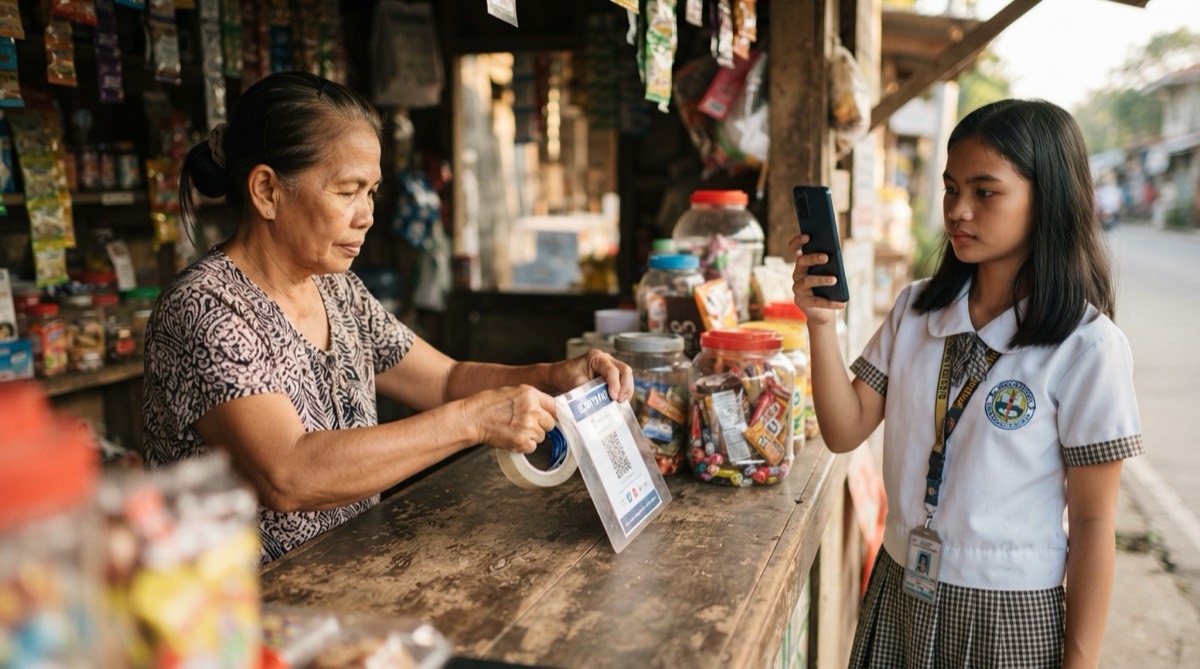
A phone screenshot taped to the counter works until it fades, curls or catches the light from the window. GCash's own printing tips for Digital QR apply to any payment code: use dark printer ink, use matte paper to reduce glare, do not stretch or resize the code, and place it where customers can scan it easily.
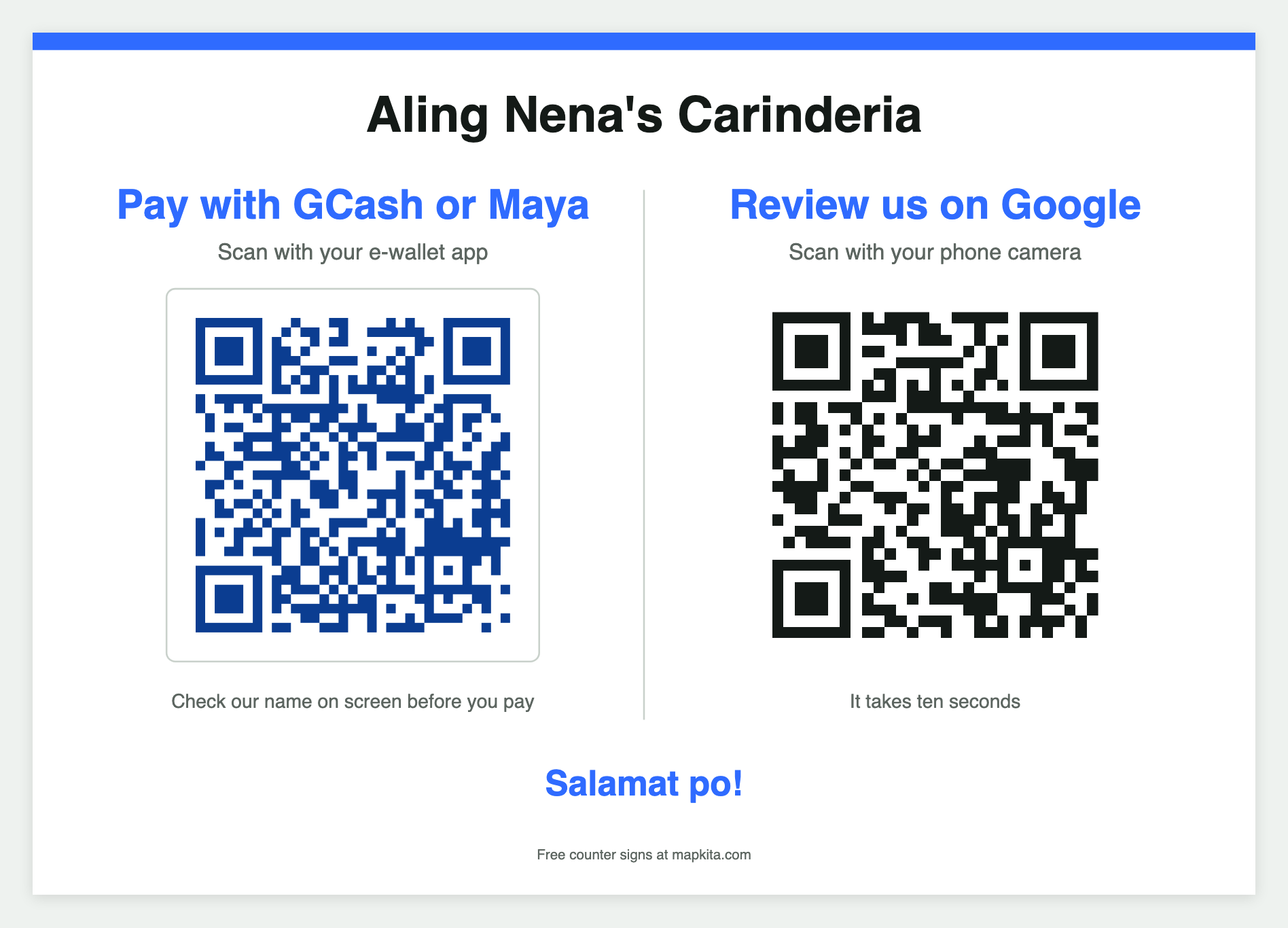
For a ready layout, this free GCash QR code template takes the QR image your GCash or Maya app gave you and puts it on a counter sign with a Google review QR beside it. Pick an A5 sign (two to an A4 sheet), a table tent that folds in half, or an A4 poster. Pick the wording: GCash, Maya, GCash or Maya, or QR Ph for any bank app. It only prints your code. It cannot make a payment QR, because only GCash or Maya can create the code tied to your account.
Where you put the sign matters as much as the print:
- At the cashier, facing the customer, at about chest height. Not flat under a glass counter top, which throws reflections.
- Away from the electric fan and the door, so it does not flap or flip over.
- One copy per place people pay. A carinderia with a long lunch queue can add a second sign where the line waits, so phones are out before people reach you.
- Laminated with a matte film if you can find one. Glossy lamination brings the glare back.
- Fixed at all four corners, or in a stand. A loose sign is easy to swap.
Check your QR every morning
A payment code on a public counter can be covered. Scammers can paste their own QR over a shop's real code so the money goes to them. The BSP has warned about this "quishing" and tells consumers to check codes for stickers placed over the original. GCash's April 2026 advisory tells customers to check the merchant name before paying, and to be wary of names that look random, incomplete or unrelated to the business.
Make that check easy for your customers, and do your own:
- Before you open, run a finger over the code. A raised edge means a sticker.
- Scan it with your own phone once a day and read the name. You don't need to send anything.
- Print one line under the code asking customers to check the name on screen before they pay. The counter sign template prints it for you. With a personal QR the name on screen is yours, not the shop's, so tell customers which name to expect.
- Confirm every payment in your own app or SMS before you hand over the order. A customer's screen is not proof. GCash tells merchants not to release goods if a payment does not show in their portal.
- If you find a fake code, photograph it, remove it, and report it through the GCash Help Center or hotline 2882, the channels listed in GCash's advisory.
- Teach staff one line: "Ma'am, paki-check lang po ang pangalan bago i-send. Dapat [your name] po ang lalabas."
GCash QR code not working? Check these first
When a customer says "ayaw ma-scan", go down this list before you give up and ask for cash.
- The customer's phone: GCash's fixes for scanning problems are to clean the camera lens, move the phone closer so the code fits in the box, and force quit and reopen the app.
- Glare: tilt the sign or move it out of the light from the window or the tube light above it.
- A damaged print: faded, wet, creased or torn codes fail. Reprint, and keep a spare in the drawer.
- Too small: keep the code at least 3 cm wide. On the A5 counter sign it is about 6.5 cm, which reads from across a counter.
- The wrong code: an old account, a number you no longer use, or a code made with a fixed amount. Scan it yourself and check the name.
- "Payment confirmation in progress": GCash says the payment is still being checked. The customer can screenshot the error and show you, and you can wait for the payment to appear or ask for another way to pay. Any adjustment shows in their history within 24 to 72 hours (GCash help).
- Charged but not received: don't release the order until it shows in your app. GCash for Business merchants email GCash Merchant Support with the customer's 13-digit transaction reference number.
Put your Google review QR beside the payment QR
Counters in the Philippines are going digital fast. In 2025, 64.69% of retail payments in the country, counted by number of transactions, were digital, up from 57.45% in 2024, according to the BSP's 2025 report on e-payments.
That makes the payment QR the moment when your customers already have the phone out and the camera open. A second code beside it, for your Google reviews, asks at exactly that moment. The customer pays, sees "Rate us on Google", and can do it while waiting for the change or the order. Get the review link from the review link generator if you don't have it yet.
Two rules keep it clean: ask every customer, and give nothing in return. Google's review policy treats discounts or freebies in exchange for reviews as fake and misleading content. One spoken line next to the sign is enough: "Salamat po. Kung may oras kayo, pa-review naman po kami sa Google, yung pangalawang QR." For more lines like that, see how to ask customers for Google reviews, and for where everything else goes on a small counter, see sari-sari store design.
Frequently asked
- Can I use my personal GCash QR for my business?
- Yes. The personal QR from the GCash app receives payments, and it is the quickest way to start. A GCash for Business merchant QR adds your merchant name, a separate business wallet and downloadable reports. Check the current limits for each account type in the app or on GCash's site.
- How do I get a GCash QR code for my store?
- For a personal code, open GCash, tap QR, then Generate QR, then Receive Money via QR Code, and save it. For a merchant code, sign up for GCash for Business and generate a Digital QR for your branch in the portal.
- Can I make a GCash QR code with a QR generator?
- No. Only GCash can create the code that sends money to your account. A QR generator only turns text into a picture. You can put the code GCash gives you on a printed sign with a free template.
- Why is my GCash QR code not working?
- Usually the print or the light: a faded, creased or glossy code, or one that is too small. GCash also suggests cleaning the camera lens, moving closer so the code fits the box, and reopening the app.
- Can customers with other e-wallets pay my GCash QR?
- If your code carries the QR Ph logo, any bank or e-wallet app that supports QR Ph can scan it. What QR Ph is explains the national standard.
Let Mapkita do this for you
Mapkita keeps your Google page right, drafts every review reply and asks you before anything goes public. Start with a free check.